Format policy
| Format | Theme behavior | Best for |
|---|---|---|
| HTML | Preserves the live preview theme and browser layout. | Theme-faithful sharing, inspection, and publishing. |
| Uses print-safe document output with page layout controls. | Review, archive, and print handoff. | |
| Word | Uses Print or Screen mode with editable document structure. | Submission, editing, review, and document handoff. |
Word export
Word export is the most configurable document export. It supports editable headings, paragraphs, tables, lists, code blocks, images, links, math where supported, and Mermaid diagram insertion.
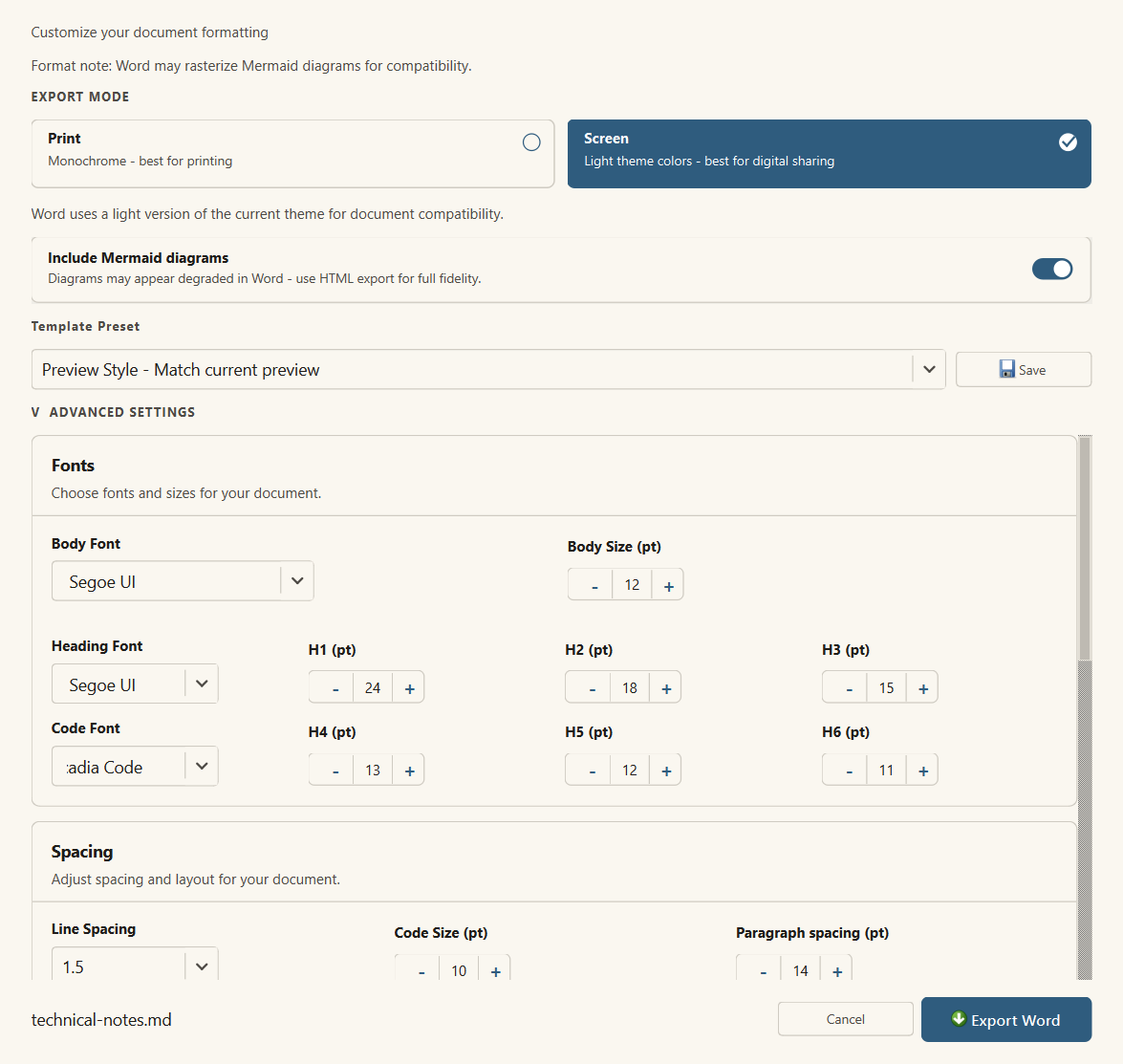
- Export Mode: Print is monochrome for printing; Screen uses light theme colors for digital sharing.
- Mermaid: Include Mermaid diagrams is enabled by default and can be disabled per export.
- Templates: Preview Style, Academic, Business, Technical, and saved custom templates.
- Fonts: body font/size, heading font, individual H1-H6 sizes, code font, and code size.
- Spacing and margins: line spacing, paragraph before/after spacing, and document margins.
- Page numbers: optional bottom-left, bottom-center, or bottom-right page numbering.
- Header and footer: optional header logo, logo width, logo position, header text, and footer text.
PDF export
PDF export is designed for review and archive output. Use landscape orientation when documents contain wide Mermaid diagrams, long tables, or long code lines.
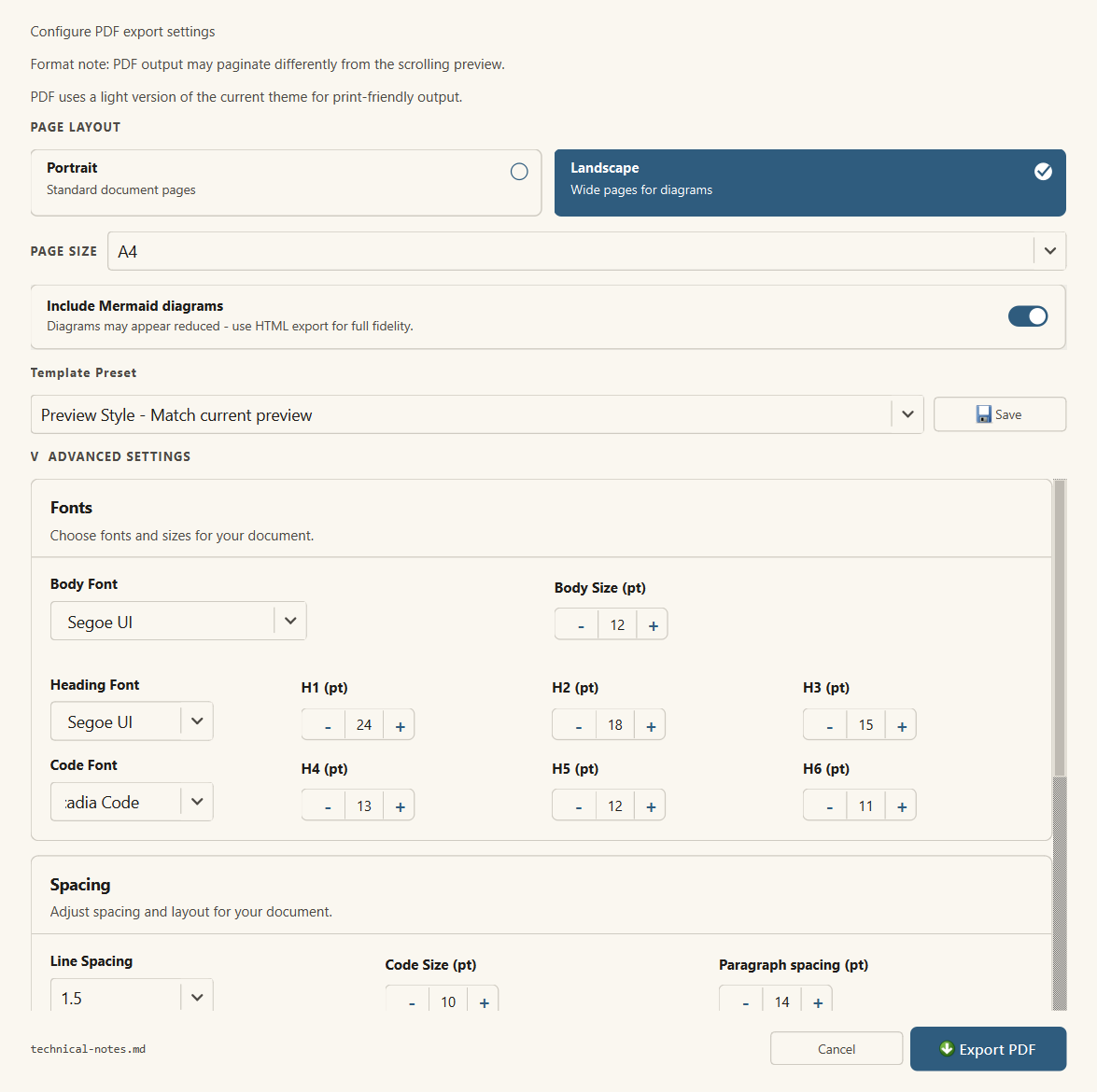
- Page layout: portrait or landscape orientation.
- Page size: A4, Letter, A3, or Legal.
- Mermaid: Include Mermaid diagrams is enabled by default and can be disabled per export.
- Templates and typography: body font/size, heading font, H1-H6 sizes, code font/size, line spacing, and paragraph spacing.
- Margins: top, bottom, left, and right margin controls.
- Header and footer: optional text above and below the exported PDF content.
HTML export
HTML export preserves live preview fidelity most closely. It is the right choice when preview theme, browser layout, Mermaid fidelity, and publishable HTML matter more than editable document structure.
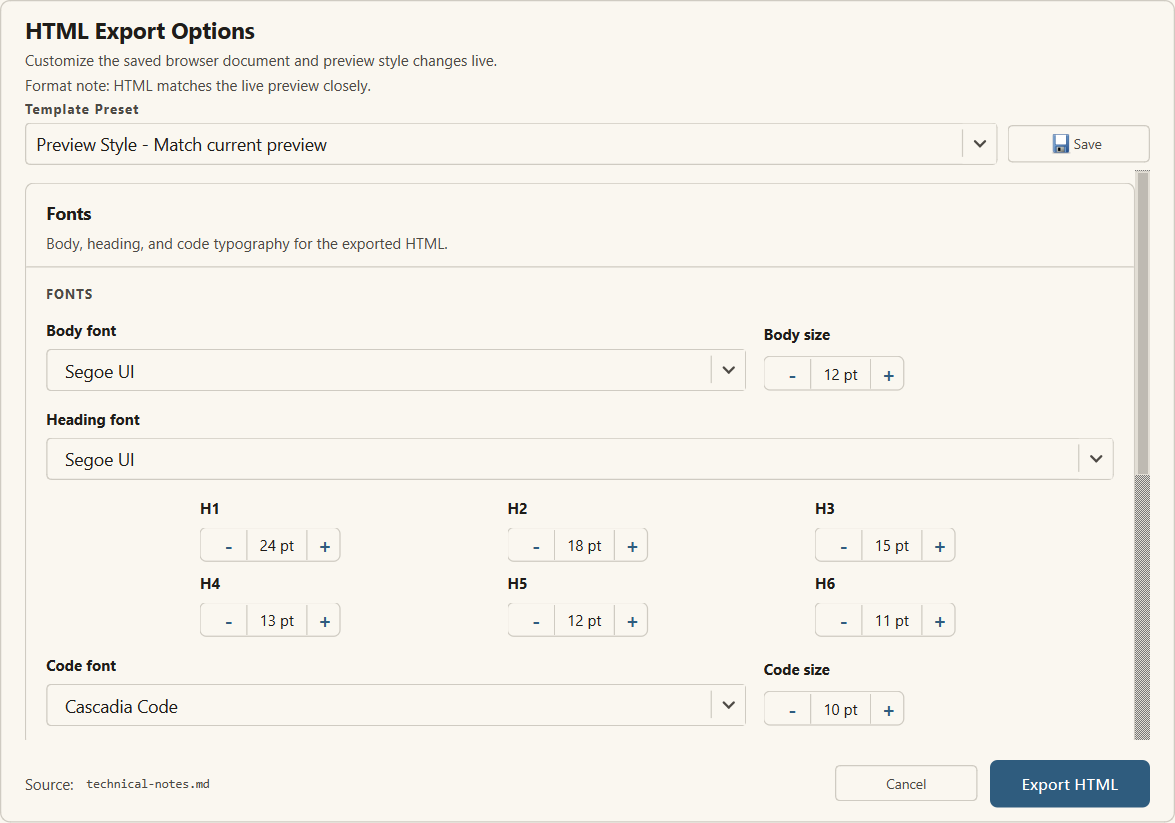
- Fonts: body, heading, and code font controls.
- Heading sizes: individual H1-H6 size controls.
- Spacing: line height and paragraph before/after controls.
- Layout: preview width, wide fixed width, or full browser width.
- Print margins: browser print margin settings for saved HTML.
Template presets
Template presets load a complete set of typography, spacing, and layout values. Preview Style mirrors the current preview and is treated as the default visual match preset. Custom templates can be saved for repeat export work.
| Preset | Use it for | Typical behavior |
|---|---|---|
| Preview Style | Matching the current preview | Uses preview-derived typography and palette family. |
| Academic | Papers, theses, formal writing | Serif document typography, wider line spacing, page numbers where supported. |
| Business | Reports and proposals | Clean office typography and practical header/footer defaults. |
| Technical | API docs, manuals, engineering notes | Compact layout and monospaced code handling. |
Mermaid and complex content
Mermaid diagrams are included in HTML export and can be toggled in Word and PDF export. Very large diagrams can exceed normal page constraints, so test Word/PDF output before distributing technical documents with dense diagrams.
Use HTML for the highest diagram fidelity, PDF landscape for wide review documents, and Word when the receiver needs an editable document.
Limited trial behavior
Microsoft Store trial availability and purchase status are handled by Store licensing. If the app is running under trial limitations, export availability and output markings can differ from the licensed version.