Open and save
Use Open or Ctrl + O to load a Markdown file. Use Save or Ctrl + S to write changes back to disk. Use Ctrl + Shift + D to set the working directory when relative links and image paths need a known base folder.
Open the built-in file explorer with Ctrl + Shift + E to browse and open Markdown files in your working folder, or open a second editor window with Ctrl + Shift + N to work on two documents at once.
View modes
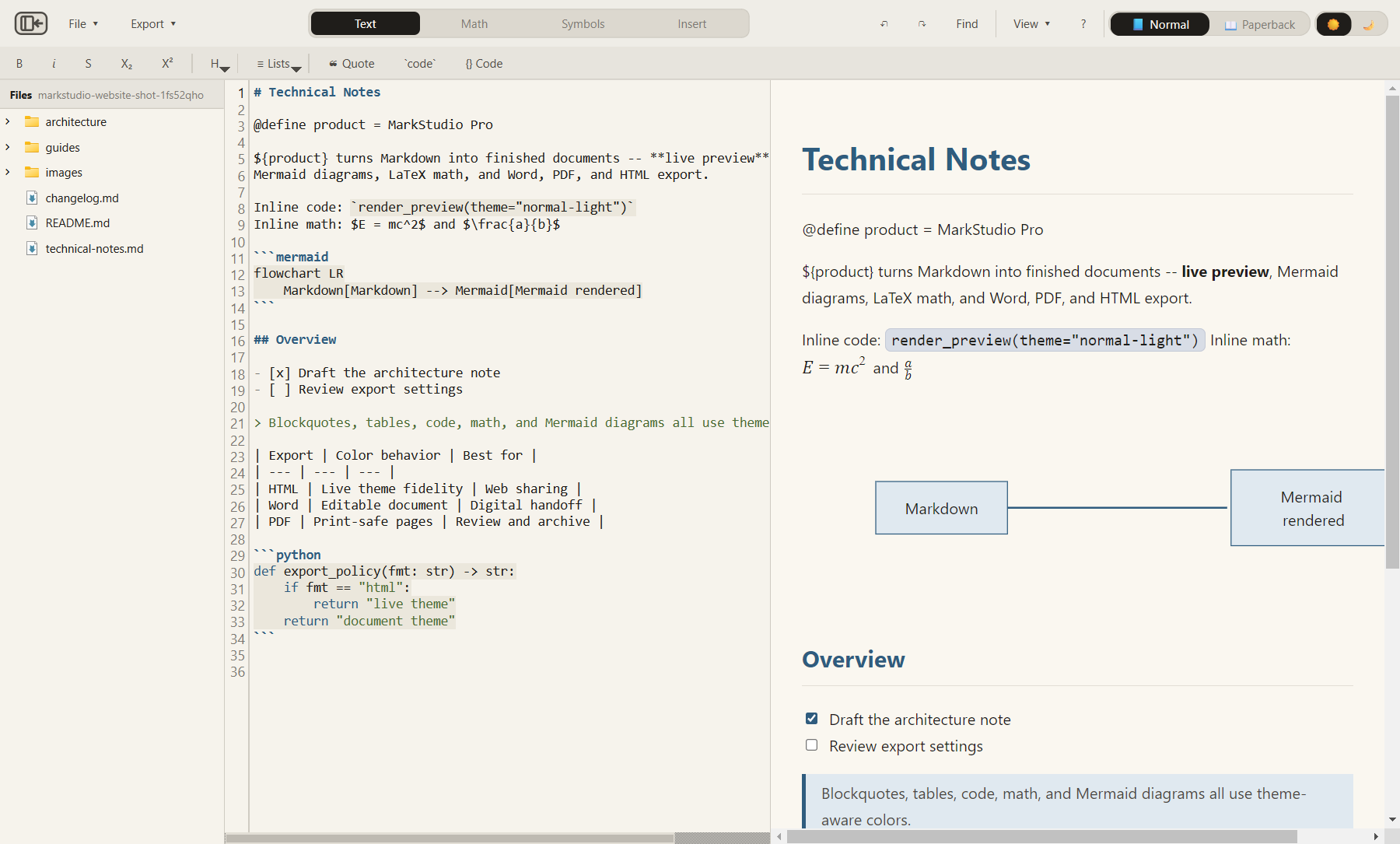
Use the View menu or shortcuts to switch between editor-only, preview-only, and split view.
| Mode | Shortcut | Use it for |
|---|---|---|
| Editor Only | Ctrl + 1 | Focused writing. |
| Preview Only | Ctrl + 2 | Reading and checking layout. |
| Split View | Ctrl + 3 | Editing while checking output. |
| Full Screen | F11 | Temporary distraction-free review. |
Themes and palettes
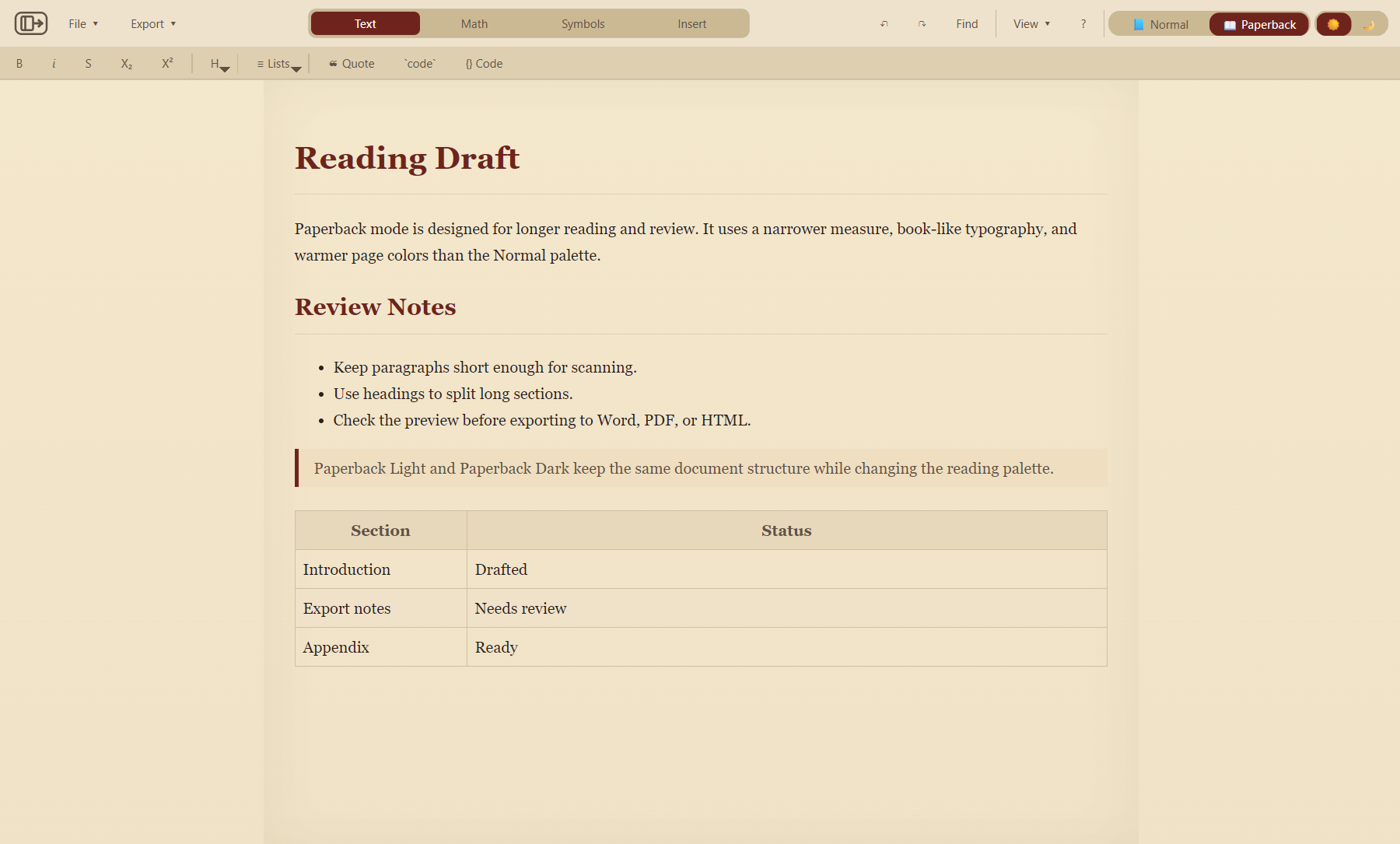
The app separates palette family from light/dark mode. Normal is the clean professional palette. Paperback is the book-like palette with a narrower preview measure and serif reading style.
Writing tools
The toolbar covers common Markdown actions: bold, italic, strikethrough, subscript, superscript, headings, lists, blockquotes, inline code, fenced code, links, images, tables, math, symbols, and Mermaid starter diagrams.
Variables use @define name = value and can be referenced as ${name}. Variables are not substituted inside code spans and fenced code blocks.

Diagrams and math
Use the Math toolbar for inline/display math, Greek letters, operators, structures, calculus, matrices, sets, and logic. Use the Mermaid starters for flowcharts, sequence diagrams, class diagrams, state diagrams, and other diagram families.
See the math guide and Mermaid guide for syntax and export behavior.


Export
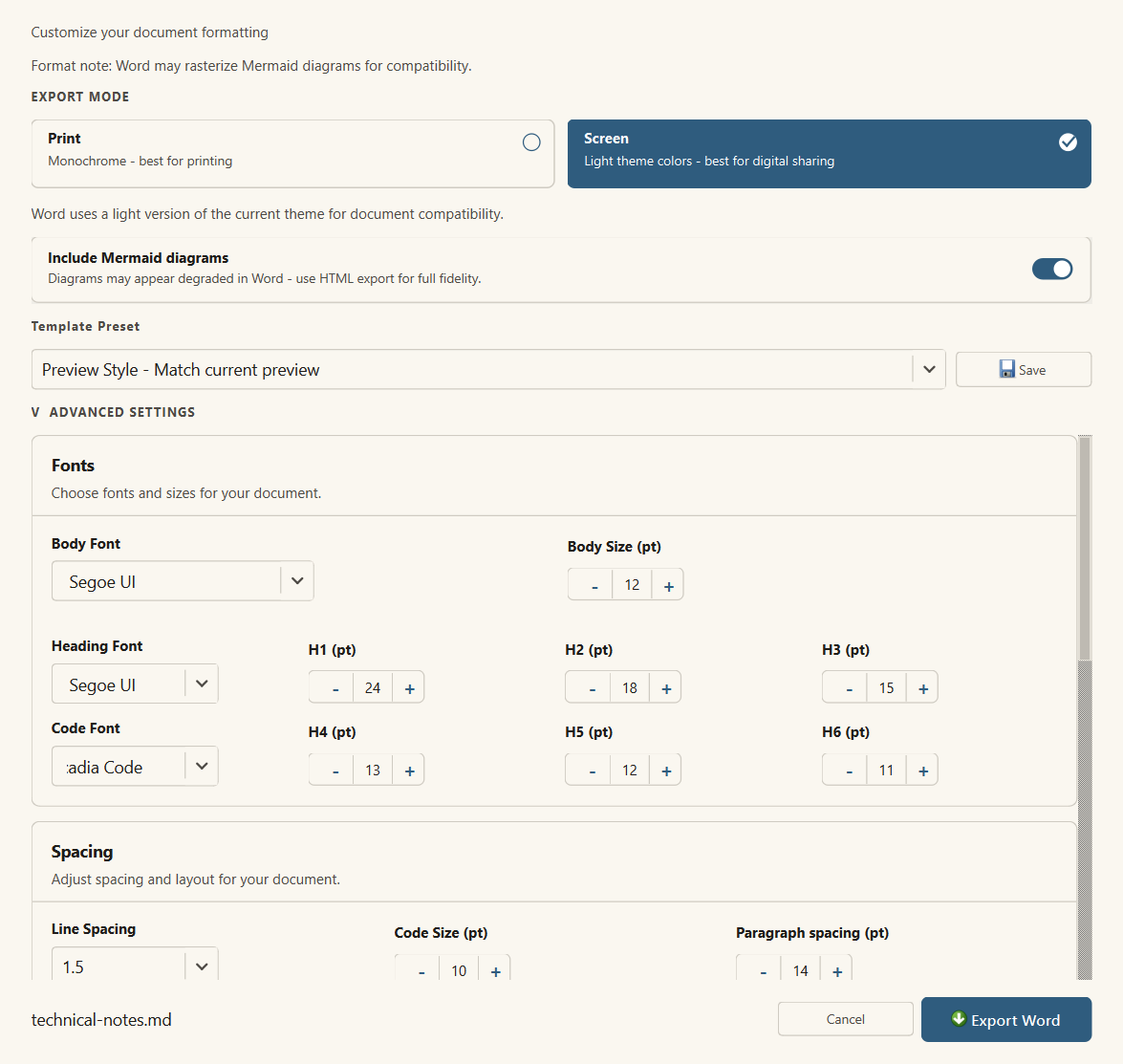
Use HTML for live-theme fidelity, Word for editable handoff, and PDF for review or archive output. The export dialogs include format-specific controls for typography, spacing, margins, and Mermaid behavior.
Safe local editing
MarkStudio Pro validates opened Markdown and sanitizes rendered HTML. Preview rendering uses restricted local behavior and local asset handling.
Next steps
- Read the export guide before sending a PDF or Word document.
- Use the Mermaid guide for diagrams.
- Use the math guide for equations and matrices.
- Review keyboard shortcuts for faster editing.